- Overview
- UX Guidelines
- Dev
Custom DIalog component
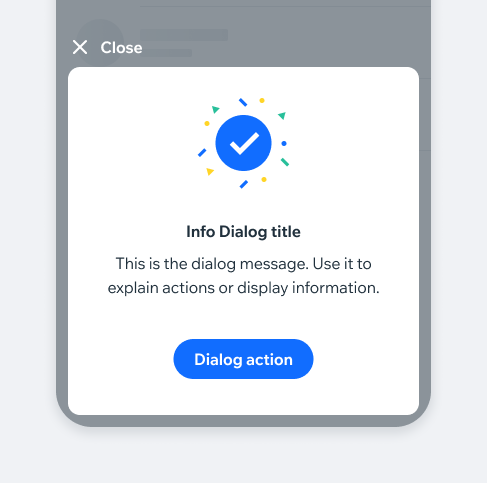
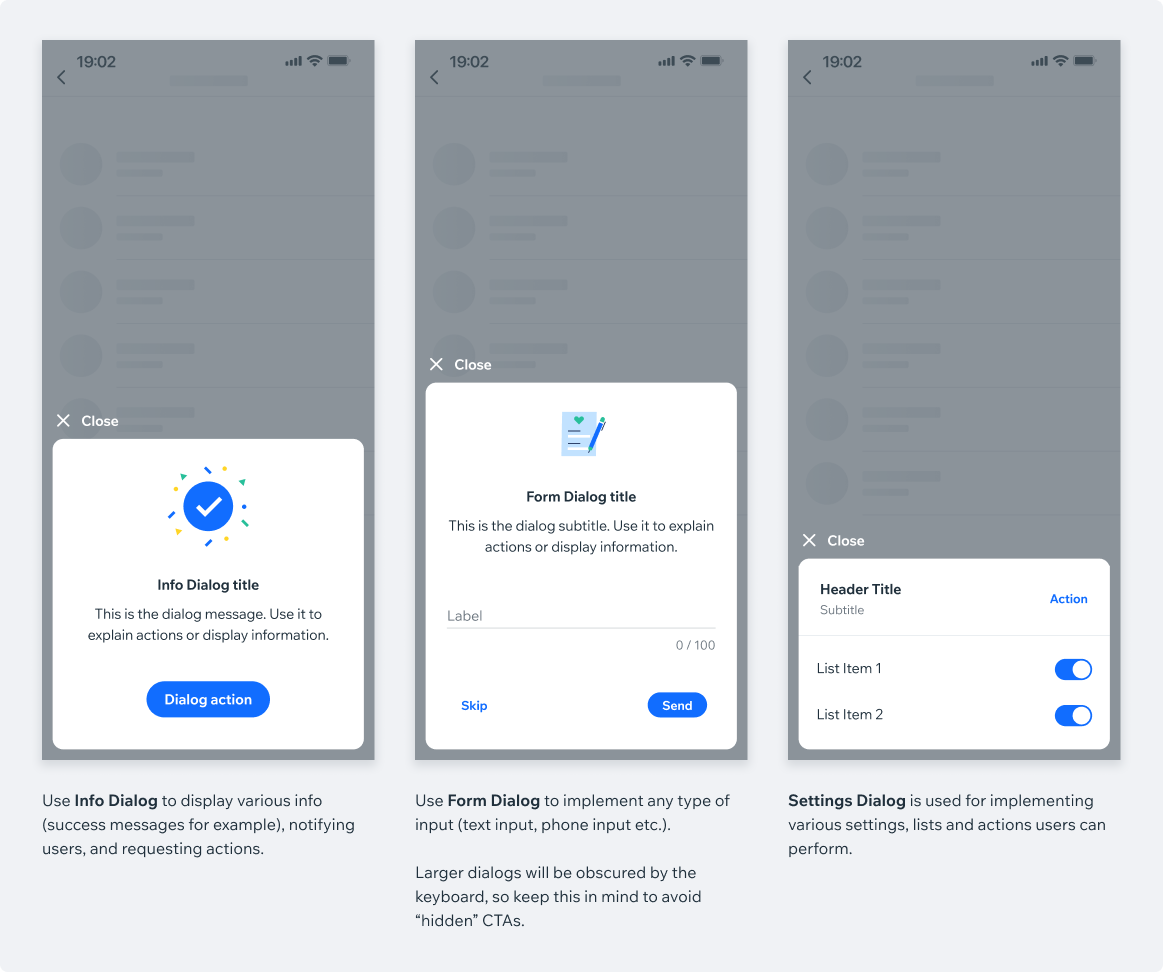
Our pre-built dialogs won’t always provide a suitable solution for some projects, in such cases, designers can build custom elements and place these in the designated “custom element” area.
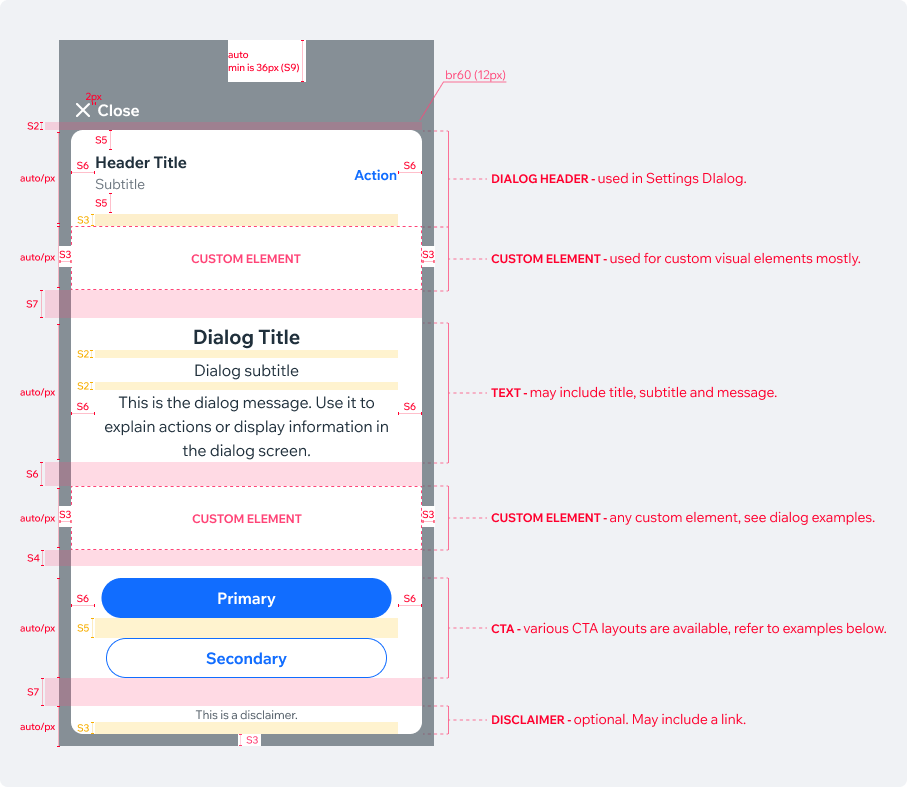
The default component is provided with a basic layout and elements. Text options, CTAs layout and their type can be adjusted as required using the instance panel.
⚠️ Custom elements should be either a library component, or built using library components and according to our guidelines (spacing, typography use etc.).
Note:
It’s recommended to create dialogs that occupy no more than 60% of the screen. This ensures that some of the screen beneath is still visible.
Also, this is more “safe” for smaller devices and dialogs with input keyboard.
Vertical layout
Vertical CTA layout occupies more space, so it’s advised to use it for shorter messages and fewer actions.
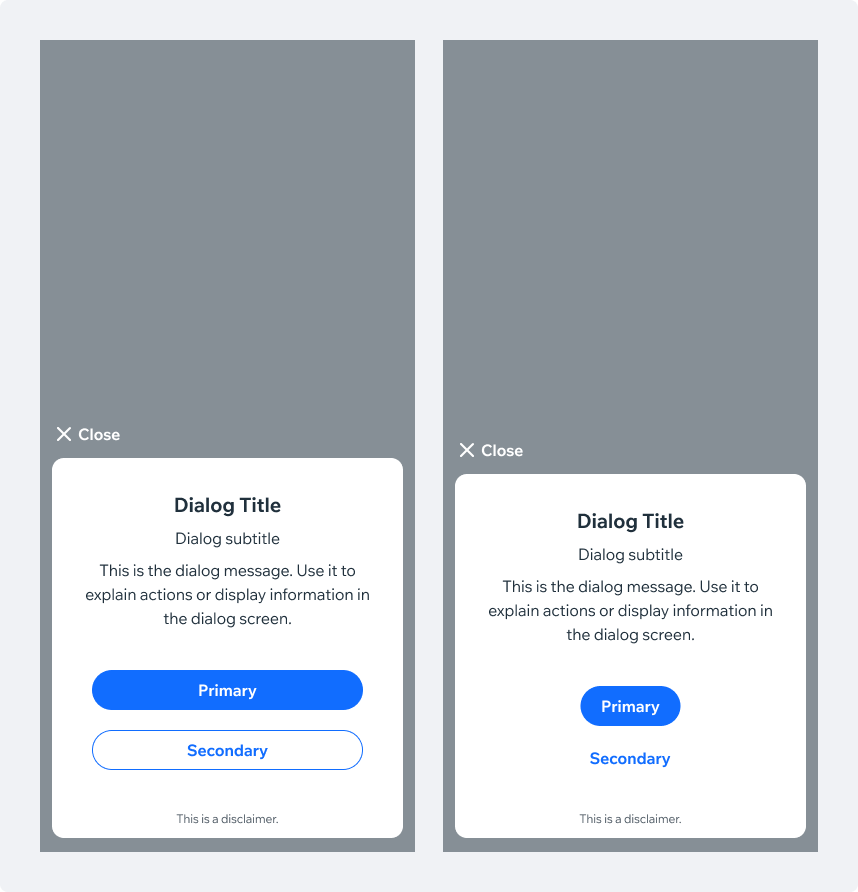
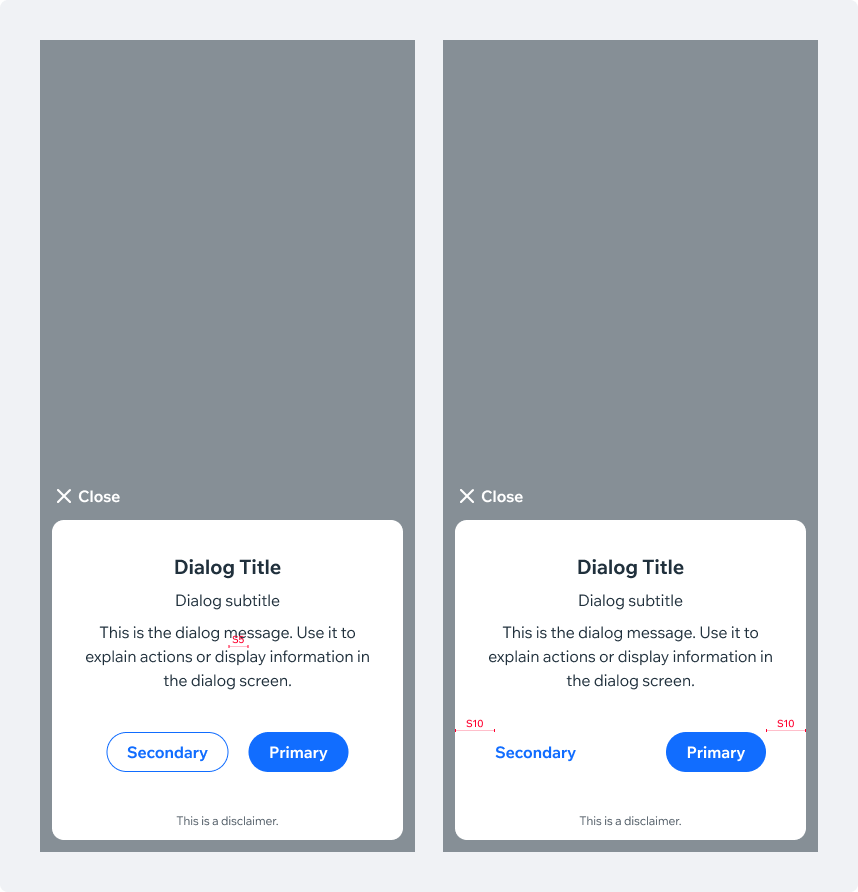
Horizontal layout
Horizontal CTA layout saves vertical space and can be used in larger dialogs.
Wide alignment is available to suit the project needs (for example in form dialog).
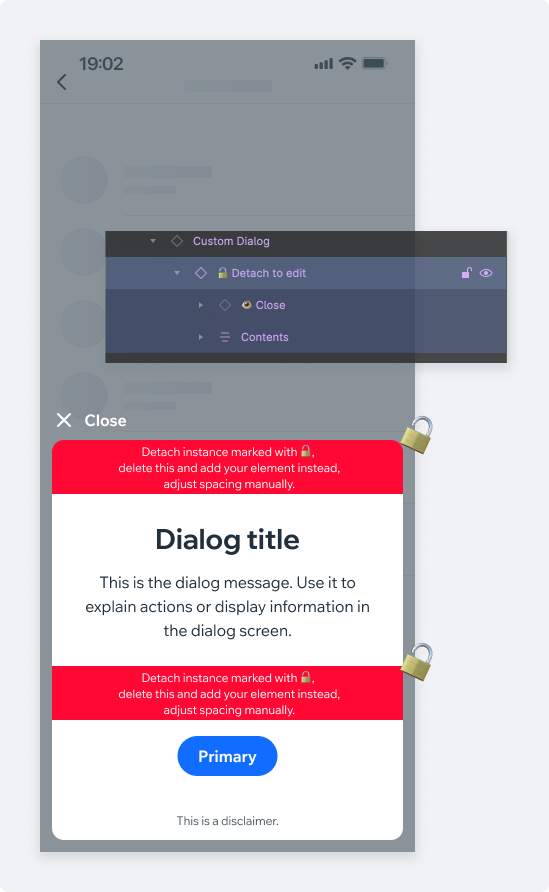
Detaching
Creating a fully responsive component for the
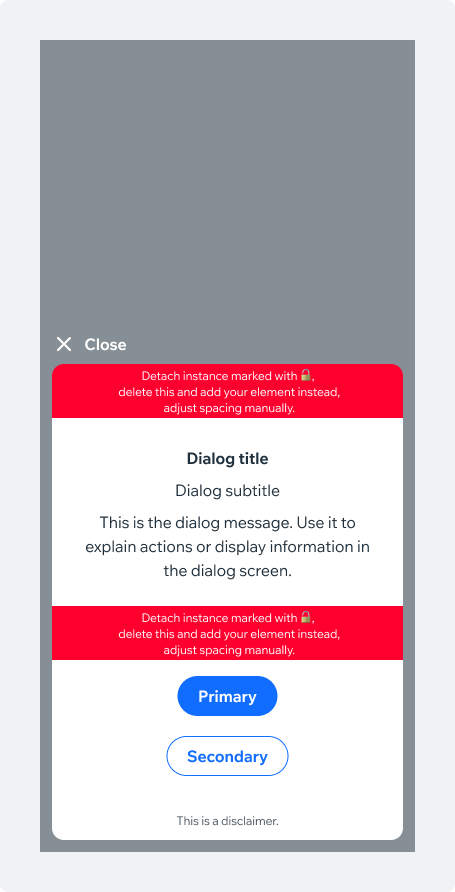
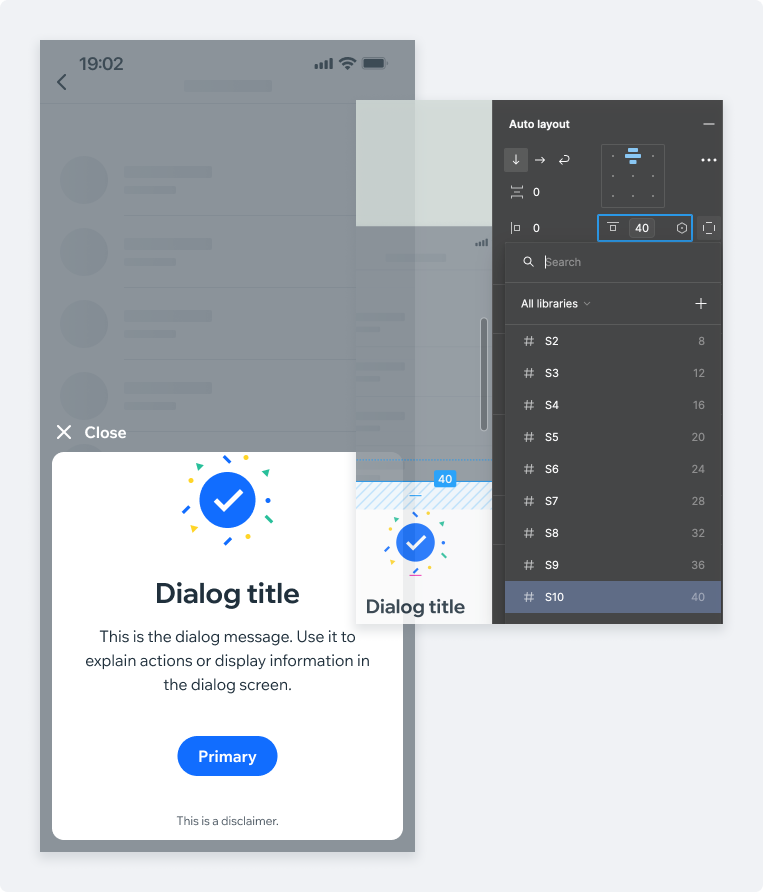
variety of custom elements isn’t possible, so you’ll have to “cheat” this time. By detaching the the instance, you can control the contents, spacing and positioning.
Note that core Design System rules should be still applied (use spacing variables and typography styles for example).
Inserting elements
Once you picked or created an element you want to add to the dialog, you can delete the designated areas (red blocks) and insert your element instead.
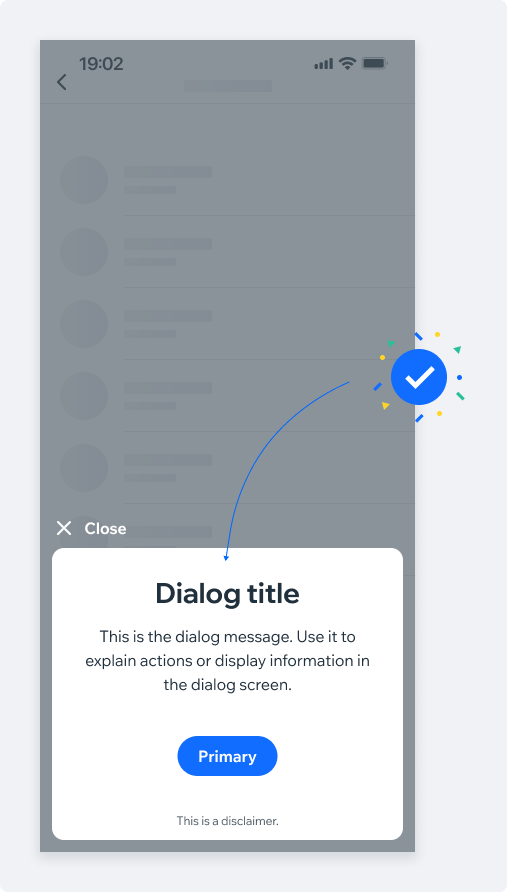
Adjusting layout
In some cases, you’ll have to adjust the spacing manually. Use common sense and refer to our guidelines.
Long dialogs
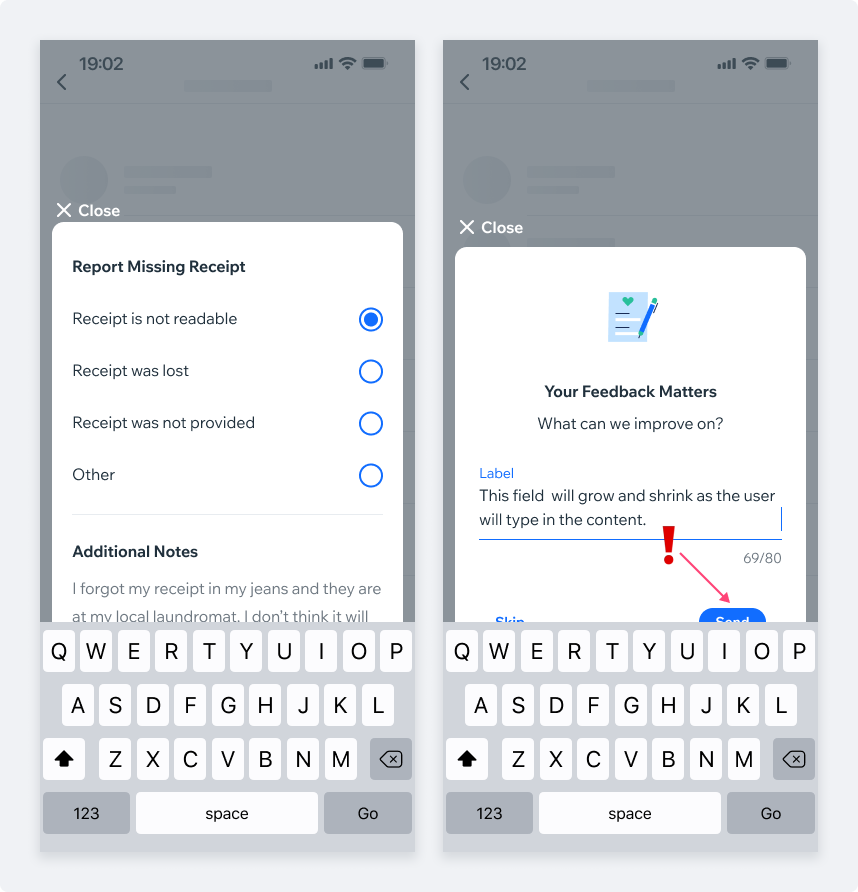
As a rule of thumb, dialog should not occupy more than a 60% of the screen. Dialogs with text input will make the dialog larger and keyboard may overlap the text, or even the CTA.
Misleading actions
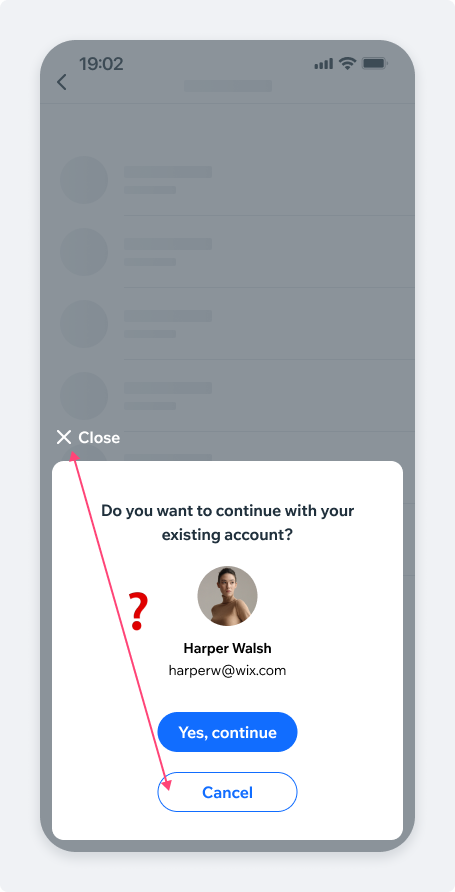
Do not use misleading and confusing CTAs and actions. Either pick a suitable content or hide irrelevant CTAs
<Dialog
  useSafeArea
  bottom
  direction={Dialog.directions.DOWN}
  containerStyle={styles.roundedDialog}
  visible={isVisible}
  onDismiss={hideDialog}
  headerProps={headerProps}
>
 {renderContent()}
</Dialog>
